Most of us keep photos, documents and work files on devices that can be lost, stolen, damaged or hit by malware at any moment. A good backup turns that kind of bad day into a minor inconvenience.
This guide explains what a backup really is, the simple rule that makes backups dependable, and how to set one up and test it without any technical background.
What a backup is, and what it is not
A backup is a separate copy of your files that you can use to get your data back if the original is lost or damaged. The word separate matters. A copy that lives in the same place as the original can disappear along with it.
Some common habits feel like backups but are not quite enough:
- Keeping a second folder on the same computer. If the computer fails, both folders go with it.
- Syncing files between two devices. If you delete or damage a file on one, the change often spreads to the other.
- Storing files in one place only, even online. A single account problem could leave you locked out.
A real backup is kept apart from your everyday files, is updated regularly, and can be restored when you need it.
Why backups matter for security
Backups are often thought of as protection against accidents, but they are also one of the strongest defences against cyber threats. Some malicious software locks your files and demands payment to unlock them. If you have a clean, separate backup, you can restore your files instead of giving in to that pressure.
Backups also help with everyday problems that are not attacks at all:
- A laptop is dropped, stolen or left on a train.
- A storage drive stops working without warning.
- A file is deleted or overwritten by mistake.
- A software update goes wrong and leaves things unusable.
- A device is damaged by water, heat or a power surge.
Decide what to back up
You do not need to copy everything. Start by asking which files would hurt most to lose. For most people and small teams, the list looks like this:
- Personal photos and videos that cannot be recreated.
- Important documents such as contracts, invoices and records.
- Spreadsheets and other work files that took time to build.
- Exported contacts, calendars and notes.
- Settings or licence information you would struggle to remember.
Programs themselves can usually be installed again, so they matter less. Your own files are the irreplaceable part. Write a short list of the folders that hold them. Having it on paper makes it much easier to check later that nothing was missed.
Follow the simple 3-2-1 idea
A widely shared rule of thumb for backups is easy to remember: keep three copies of your data, on two different kinds of storage, with one copy stored somewhere else.
- Three copies: the original files plus two backups. If one copy fails, you still have another.
- Two kinds of storage: for example, an external drive and an online storage service. Different types of storage fail in different ways.
- One copy elsewhere: keep one backup away from your main location, either online or at another site. Fire, theft or flooding can then not destroy everything at once.
You do not have to follow the rule perfectly. Even moving from one copy to two, with one kept in a different place, is a big improvement. Think of 3-2-1 as a target to work towards.
Choose where to keep your backups
There are two main options, and many people use both.
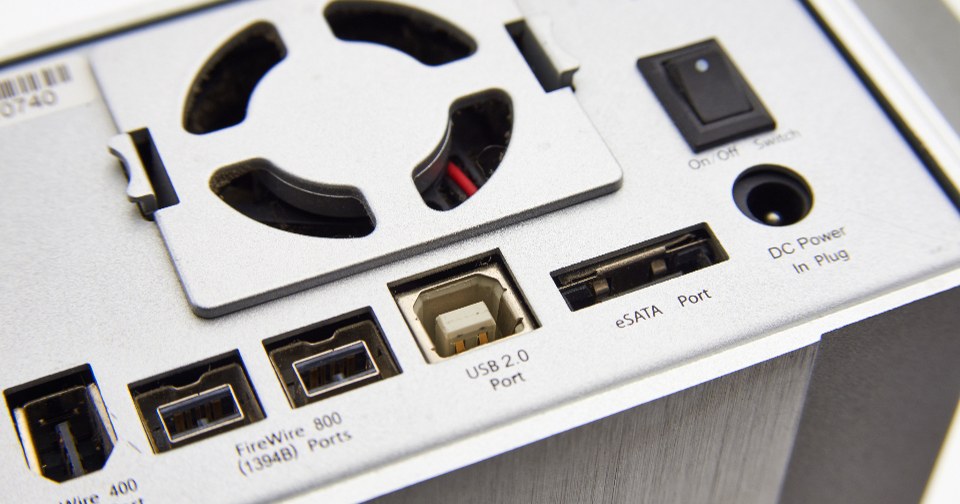
External drives. A portable drive that you plug in is simple, private and does not need an internet connection. The downsides are that you must remember to connect it, it can be lost or damaged like any device, and it is of little use if it sits next to your computer during a fire or theft. Unplug it after the backup finishes so that malware cannot reach it.
Online backup and cloud storage. A backup service stores your files in a remote location, often automatically in the background. It keeps a copy away from your home or office and removes the need to remember. Protect the account with a strong, unique password and two-factor login, because anyone who gets into it can reach your files. Remember that plain file syncing is not the same as backup unless older versions of files are kept.
If your files are very private, consider whether the backup is encrypted, which means scrambled so that only you can read it. Many tools offer this as a simple option.
Set it up step by step
Here is a straightforward routine you can finish in an afternoon:
- List the folders you need to protect.
- Pick a first backup destination, such as an external drive.
- Copy your files there using the backup tool built into your device, or copy them by hand if you prefer.
- Pick a second destination in a different place, such as an online backup service.
- Turn on automatic backups where possible, so that it happens without effort.
- Put a repeating reminder in your calendar to check that it still works.
Automatic backups are the most dependable kind. People forget manual tasks, especially when they are busy, and a backup that is two years old is not much help.
Test your backup before you need it
This is the step most people skip, and it is the one that matters most. A backup you have never tried to restore is only a hope. Every so often, take a few minutes to test it:
- Open a few files from the backup and make sure they work.
- Try restoring one file to a different folder.
- Check the date of the latest backup to confirm it is recent.
- Look for any warning messages from your backup tool.
For small teams, it helps to name one person who is responsible for checking backups, and to write down where the backups are kept and how to restore them. That way, recovery does not depend on one person’s memory.
Common mistakes to avoid
- Leaving the backup drive plugged in all the time, where malware could also affect it.
- Keeping every copy in the same room or building.
- Never checking that the backup still runs.
- Forgetting to back up phones and tablets, where many photos live.
- Using a weak password on the online backup account.
- Throwing away old drives without erasing them first, which can expose private data.
None of these are hard to fix. Most simply need a little attention once, followed by a regular reminder.
Conclusion
Backups are not exciting, but they are one of the most useful habits in everyday cybersecurity. Decide what matters, keep more than one copy, store one copy somewhere else, automate what you can, and test the result now and then.
Start small today. Back up your most precious folder to one extra place, and set a reminder to improve the setup next week. Future you will be glad you did.
This article is for general educational purposes only and is not professional, legal or security advice for your specific situation.