Most of us use a home network every day without thinking about it. Phones, laptops, TVs and smart speakers all connect to it, and when it works, nobody notices. This guide explains the basic pieces in plain language, so you can understand what is happening and fix common problems with confidence.
What a Home Network Actually Is
A home network is simply a group of devices that can talk to each other and share one connection to the wider internet. Think of it like a small neighbourhood with its own streets. Devices inside the neighbourhood can visit each other, and there is one main gate that leads out to the rest of the world.
That main gate is the connection your internet provider gives you. Everything else in your home network exists to share that single connection among many devices at the same time.
A typical home network includes a few key parts:
- A modem or similar box that receives the signal from your internet provider.
- A router that directs traffic between your devices and the internet.
- Wi-Fi, which lets devices connect without cables.
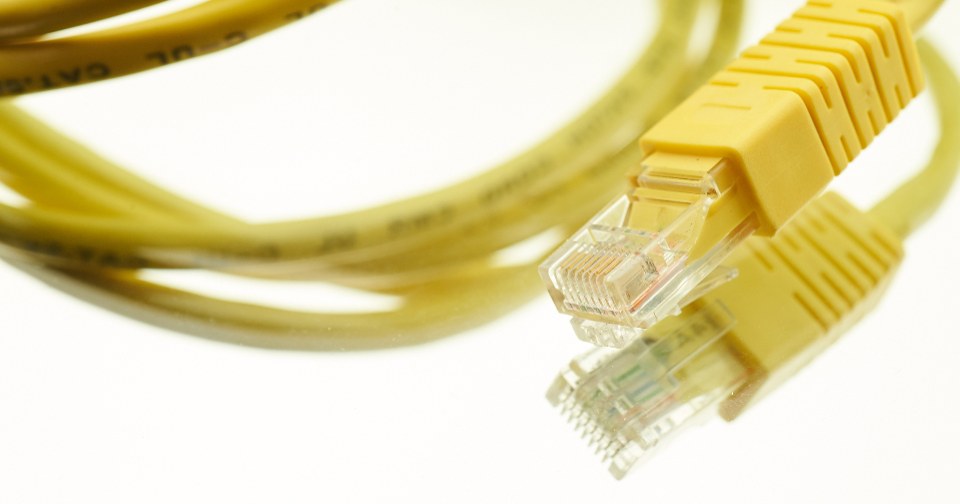
- Network cables, which connect some devices directly for a steadier link.
The Router: Your Network’s Traffic Director
The router is the heart of your home network. When you open a web page, your device sends a request to the router. The router passes it out to the internet, waits for the answer, and then sends the answer back to the right device.
Without a router, only one device could easily use the connection. The router keeps track of who asked for what, so a video playing on the TV does not get mixed up with an email loading on your phone.
Many homes have a single box that combines the modem, the router and the Wi-Fi radio. Others use separate boxes. Both setups do the same jobs. The only difference is how many boxes sit on the shelf.
How Wi-Fi Works
Wi-Fi uses radio waves to carry data between your device and the router. Your device and the router each have a small radio built in. They send information back and forth in tiny pieces, many times every second.
Wi-Fi signals get weaker as they travel. They also lose strength when they pass through things like thick walls, floors, mirrors and large metal objects. This is why the signal may be great in the living room but poor in a far bedroom.
Wi-Fi is also shared. Every device on the network takes a turn using the radio signal. If many people are streaming, gaming and making video calls at once, each activity may feel slower. That is normal, and it does not always mean something is broken.
Cables Still Matter
Wireless is convenient, but a network cable is often the most reliable way to connect a device. A cable is not affected by walls or by the radio signals from neighbours. It usually gives a steadier and more consistent connection.
Cables are a good choice for devices that stay in one place and need a dependable link, such as:
- A desktop computer used for work or video calls.
- A TV or media player that streams for long periods.
- A game console that needs a stable connection.
- A printer or storage device shared by the household.
If one important device keeps having trouble on Wi-Fi, plugging it in with a cable is a simple and low-cost test. If the problem disappears, the wireless signal was likely the cause.
Simple Ways to Improve Your Home Network
You do not need to be an expert to get better results. A few simple habits help a lot.
- Place the router well. Put it in an open, central spot, off the floor and away from thick walls and large metal objects.
- Restart it now and then. Switching the router off and on again can clear small glitches. Wait a short while before turning it back on.
- Keep it updated. Check that the router’s built-in software is up to date, since updates can fix problems and improve safety.
- Use a strong Wi-Fi password. Choose a long, unique one so that strangers cannot join your network.
- Change the default login. Routers often come with a standard admin password. Replace it with your own.
- Remove devices you no longer use. Fewer connected devices means less competition for the signal.
If the signal still does not reach every room, a device that extends or repeats the Wi-Fi signal can help. Check how it works before buying, and choose one that suits the size and layout of your home.
Troubleshooting When Things Go Wrong
When the internet seems slow or stops working, a calm step-by-step approach saves time. Start with the simplest checks first.
- Check whether the problem affects one device or all of them. If only one device is struggling, the issue is probably with that device.
- Look at the lights on your router. Most routers use lights to show whether they are connected, and your manual can explain what each light means.
- Make sure all cables are pushed in firmly at both ends.
- Restart the router, and then restart the affected device.
- Move closer to the router to see whether distance is the problem.
- If nothing works, contact your internet provider to check for a wider outage.
Writing down what you tried can also help if you need to ask someone for support. It saves time and avoids repeating the same steps.
Conclusion
A home network is made of a few simple parts working together. The modem brings in the connection, the router directs traffic, Wi-Fi spreads the signal through the air, and cables give a steady link where it matters most. Once you know what each piece does, problems become much less mysterious.
Start with small steps: place the router well, keep it updated, use strong passwords and try a cable for important devices. These habits make your network faster, safer and easier to manage, and they help you stay in control of the technology you rely on every day.
This article is for general educational purposes only and is not professional, legal or security advice for your specific situation.